ContextIQ Copilot User Guide
Learn the best ways to get what you need with ContextIQ Copilot.
What is ContextIQ Copilot?
The ContextIQ AI Copilot is the first AI tool purpose-built for CTV campaign planning and forecasting. It bridges the gap between advertiser strategy and real-world campaign activation by translating your brand details, creative assets, and goals into targeted, contextually relevant placements at scale.
🎬 Multimodal Video Intelligence
Multimodal video intelligence understands streaming content the way a human expert would by simultaneously analyzing video, audio, dialogue, objects, and emotional tone at the scene level. Unlike legacy solutions that rely on static transcripts or broad show-level metadata, ContextIQ delivers a nuanced, moment-by-moment understanding of what's happening on screen.
🛡️ Intelligent Brand Suitability
Prevents ad adjacency to unsafe content using suitability controls tailored to your brand.
🎯 Strategy-to-Activation
Input your brand brief or upload creative, and the Copilot returns scene recommendations, real-time inventory forecasts, and a preview of where your ads are most likely to run.
Getting Started
The Copilot interface offers four main entry points. Each is designed for a different planning starting point:

Brand / Product: AI-powered campaign planning starting from your brand name, product, and brief. Recommended for most campaigns.
Creative Analyzer: Upload or link your ad creative and let the AI analyze it — then automatically find contextually matched scenes.
Browse: Explore the pre-built syndicated taxonomy of vertical- and sub-vertical-specific scenes without using AI prompting.
Scenes: Search for a specific type of scene directly if you already know what context you want to target.
Ask the Right Stuff

Before diving into campaign planning, you can configure content filters to ensure all scene recommendations align with your brand’s standards. Select the filter icon to access these controls.
Because ContextIQ’s approach is multimodal, it can detect both brand safety considerations (such as violence or profanity) and nuanced tonal indicators (such as positive or negative sentiment) that a simple keyword blocklist would miss.
What you can filter:
Brand safety categories (e.g., violence, profanity, sensitive topics), sentiment (positive, negative, neutral), and emotional tone. These filters apply globally to all scene recommendations returned by the Copilot.
Brand / Product: AI-Powered Campaign Planning
The Brand/Product workflow is the recommended starting point for most campaigns. It uses the ContextIQ AI to generate a full scene strategy from your brand brief and returns a transparent, scalable inventory forecast.
1. Launch the Copilot
Click the Brand / Product button to filter by brand/product. Enter your Brand Name and the specific Product the campaign is targeting. Then click the + icon to expand the additional campaign details field.

💡 Pro Tip:
The additional details field is free-form. You can paste keywords, themes, campaign priorities, or even the full text of an RFP or brand brief. The more context you provide, the more tailored your scene recommendations will be.
2. Review & Refine Scene Recommendations
Click the Send icon

to submit your prompt.
The Copilot will return a curated list of suggested scenes with strategic rationale for each. Each recommendation explains why that scene context aligns with your brand.
You can:
- Use the X icon to remove any scene or prompt element you don’t want.
- Use the + icon to add additional context and further refine the results.
- Iterate freely — the more you refine the prompt, the more precise your targeting becomes.

3. Search Scenes & Review Inventory Forecast
Once you’re happy with your scene selection, click Search Scenes for All. The Copilot will return:
- A transparent, real-time inventory forecast showing expected scale.
- A sample of 10 filmstrips — actual scene previews from the content your ad would run against.
- Top-line metadata for each scene: Channel, Genre, Content Provider, and Scene Tag.
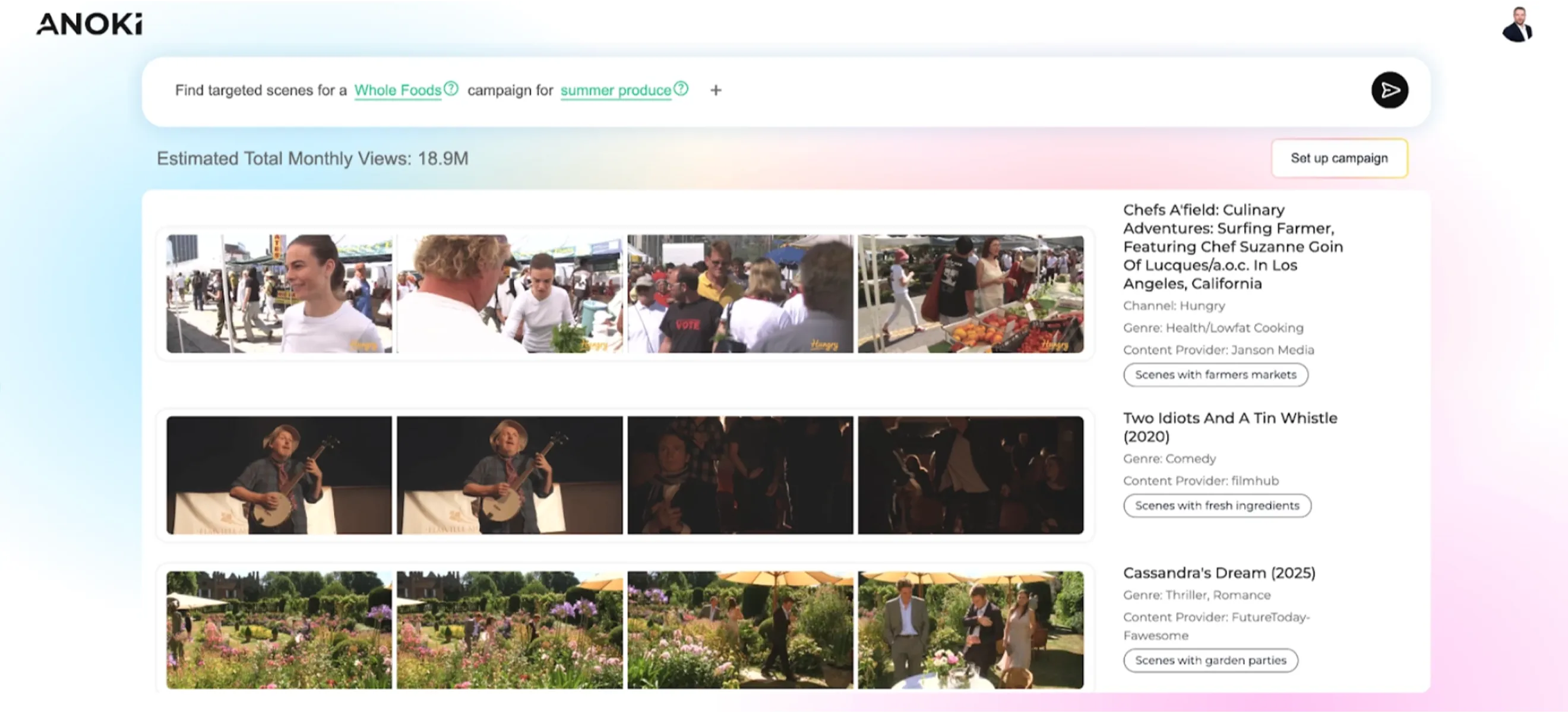
4. Set Up Your Campaign
Click Set Up Campaign to finalize and submit your campaign to the Anoki Ad Operations team.
You will be prompted to provide:
- Campaign label / name
- Deal ID (separate or combined, as needed)
- Inventory requests and targeting parameters
- Flight dates
Once submitted, the Anoki Ad Operations team will review and complete the setup on your behalf.
Creative Analyzer
The Creative Analyzer lets the AI work from your actual ad creative — rather than a text brief — to find the most contextually resonant scenes. This is especially powerful when your creative already has a strong visual or emotional identity that you want the content environment to mirror.
1. Open the Creative Analyzer
Select the Creative Analyzer option from the Copilot interface.

2. Upload or Link Your Creative
You have two options:
- Upload ad creative stored on your local device.
- Input a URL to creative hosted on iSpot.
As the file uploads, you’ll see a preview of the video play in-screen along with a message confirming that video analysis is in progress. This analysis typically takes a few minutes.

3. Review the AI Analysis
Once complete, the Copilot will surface:
- The detected theme of your ad creative.
- A proposed target audience based on the creative’s content and tone.
- A curated list of scenes that align with your creative — the same way the Brand/Product Copilot works, but automatically derived from the video itself.
As the file uploads, you’ll see a preview of the video play in-screen along with a message confirming that video analysis is in progress. This analysis typically takes a few minutes.

💡 Best Practice:
Use the Creative Analyzer when your campaign has a finalized creative asset. Use the Brand/Product flow when you’re still in the strategy and planning phase. Both ultimately surface the same type of contextually relevant scene inventory.
Browse & Scenes: Explore the Taxonomy
Browse
Browse gives you access to Anoki’s pre-built syndicated taxonomy — a structured library of scenes organized by vertical and sub-vertical.
This is ideal when you want to explore available inventory by category without using AI-generated recommendations.

Scenes
If you already have a specific scene type in mind, the Scenes button lets you search directly. Enter a keyword or description and the platform will surface matching scene inventory from across the CTV ecosystem.

When to use Browse vs. Scenes:
Use Browse when exploring what’s available across a category. Use Scenes when you know exactly what kind of contextual moment you’re targeting, such as “cooking at home” or “outdoor adventure.”
Quick Reference
Copilot Workflow at a Glance
- Set Filters
(Optional) Configure brand safety, sentiment, and emotion filters before starting. - Choose Your Entry Point
Brand/Product for strategy-first planning, or Creative Analyzer for creative-first. - Input Details & Get Recommendations
Enter brand/product info (or upload creative). Refine the AI-generated scene list as needed. - Search Scenes for All
Generate your inventory forecast and preview the filmstrips of matched scenes. - Set Up Campaign
Submit your campaign details to the Anoki Ad Operations team for activation.
Tips for Best Results
- Include as much context as possible in the Brand/Product prompt — campaign themes, target audience, keywords, tone, or even a full RFP.
- Use the X and + icons to iterate on recommendations rather than starting over — the Copilot is designed for conversational refinement.
- The inventory forecast reflects real-time availability — check it before finalizing flight dates to ensure scale meets your goals.
- Filmstrip previews are not guarantees of specific placements, but they are representative of the content environment your ads will run in.
- Both Brand/Product and Creative Analyzer can be used on the same campaign — start with one and cross-reference with the other for additional confidence.
Support
Questions about the Copilot or need help with a specific campaign? Reach out to the Anoki team: Email: info@anoki.ai, website: www.anoki.ai